
How to add otp verification to contact form 7
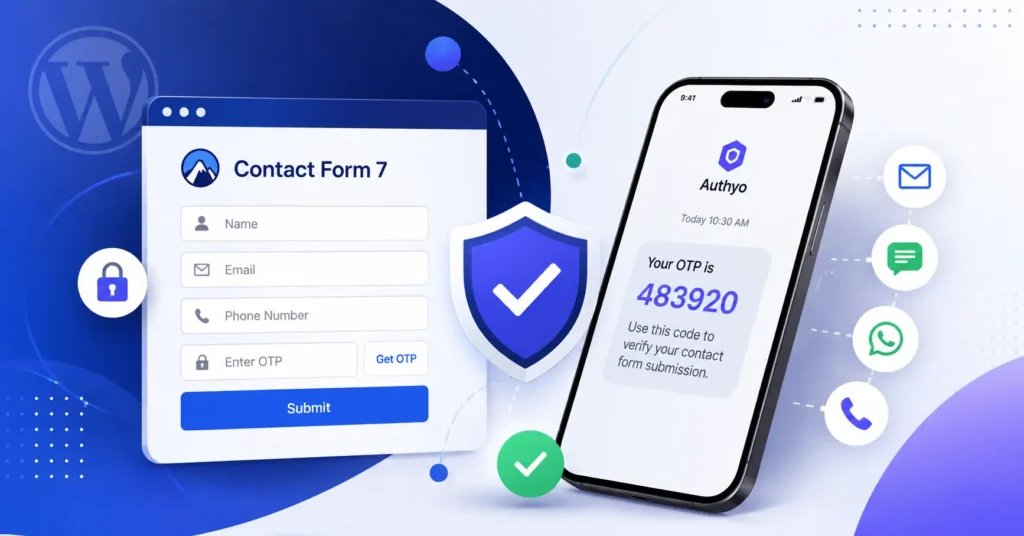
How to Add OTP Verification to Contact Form 7 in WordPress
Secure every form submission with real-time Email, SMS, WhatsApp & Voice Call OTP verification — featuring the Authyo OTP plugin for CF7.
If you run a WordPress website and use Contact Form 7, you already know how powerful it is for collecting leads, inquiries, and user information. But there's a persistent problem that almost every site owner faces sooner or later: spam submissions, fake entries, and unverified contact details flooding your inbox.so get ready to how our authyo OTP verification for Contact Form 7 integration works.
Standard CAPTCHA solutions slow users down and frustrate legitimate visitors. Email validation links require extra steps. And basic honeypot techniques are increasingly easy to bypass.
What if you could verify every form submission with a real-time, one-time password — delivered directly to the user's email address or phone — before the form is even submitted?
That's exactly what Authyo OTP for Contact Form 7 does. In this comprehensive guide, we'll walk you through everything you need to know — what it does, how it works, how to install and configure it, what shortcodes to use, and why it's one of the most complete OTP verification solutions available for WordPress today.
What Is Authyo OTP for Contact Form 7?
Authyo OTP for Contact Form 7 is a WordPress plugin that integrates real-time OTP (One-Time Password) verification directly into Contact Form 7 forms. Built and maintained by the Authyo team, it connects your forms to the Authyo verification API — a cloud-based service that delivers one-time codes via email, SMS, WhatsApp, and Voice Call.
When a visitor fills out a form on your website, they must first verify their email address or phone number by entering a short OTP code before the form can be submitted. This single step eliminates bot spam, ensures all contact details are real and reachable, and significantly improves the quality of every lead your forms generate.
The plugin goes far beyond a simple OTP widget. It includes a built-in leads database, a Google Sheets integration, WhatsApp admin notifications, an advanced phone number validator, a country code dropdown, GDPR tools, and more — making it a complete form security and lead management suite built on top of Contact Form 7.
- Current version: 1.0.32
- Requires: Contact Form 7 (installed and active)
- License: GPLv2 or later
- Available at: wordpress.org/plugins/authyo-otp-for-contact-form-7/
Why Add OTP Verification to Your WordPress Forms?
The Problem with Unverified Form Submissions
Contact Form 7 is installed on tens of millions of WordPress websites. Its popularity makes it a massive target for spam bots, which submit forms with fake names, throwaway email addresses, and random phone numbers. Even with CAPTCHA enabled, you still end up with:
- Low-quality leads — contacts who typed their email wrong or used a fake one.
- Wasted sales effort — your team chases numbers and email addresses that don't exist.
- Bot spam — automated submissions flooding your inbox and CRM.
- False analytics — inflated form submission numbers that don't reflect real interest.
What OTP Verification Solves
When a user must enter an OTP code delivered to their actual email inbox or phone, you get real-time proof of ownership. They cannot proceed unless they have access to the email address or phone number they entered. This means:
- Every email address in your leads list is confirmed deliverable.
- Every phone number is confirmed reachable.
- Bots and spam scripts cannot pass verification — they cannot receive OTP codes.
- Your lead quality improves dramatically — every submission is from a real, reachable person.
- Your sales and marketing teams spend time on genuine prospects.
OTP verification is already standard practice in banking, fintech, e-commerce, and SaaS — and it's now accessible to every WordPress site through this plugin.
Key Features at a Glance
Before diving deep, here's a quick overview of what Authyo OTP for Contact Form 7 includes:
Deep Dive: Every Feature Explained
1. Multiple OTP Delivery Channels
Authyo OTP supports four distinct channels for delivering one-time passwords. As an admin, you can enable any combination and configure which one is the primary method for phone-based forms.
- Email OTP — The OTP code is sent to the email address the user entered in the form. Ideal for email capture forms, newsletter signups, and contact forms.
- SMS OTP — The OTP is sent as a text message to the user's phone number. SMS delivery is fast, works on any mobile phone (no internet required), and has extremely high open rates.
- WhatsApp OTP — Particularly effective in regions where WhatsApp is the dominant messaging platform (India, Brazil, Southeast Asia, Middle East, Africa).
- Voice Call OTP — Authyo calls the user's phone number and reads the OTP code aloud. The most accessible option for users who have difficulty reading texts.
2. Dual Verification — Email and Phone in One Form
Most OTP plugins force you to choose: email or phone. Authyo OTP for Contact Form 7 supports both simultaneously within a single form using separate shortcodes — and . The plugin's submission guard will require both to be verified before allowing the form to be submitted.
3. Smart Fallback Method
When a user doesn't receive an OTP via the primary channel, the plugin displays a fallback method selector after a configurable timer expires. The user can then trigger the OTP again via a different channel — for example, switching from SMS to WhatsApp, or from WhatsApp to a Voice Call. This dramatically reduces friction and improves form completion rates.
4. Visitor Method Choice
If you enable the Allow Visitor Method Choice setting, users are presented with a method selector at the start of the OTP flow — letting them choose their preferred delivery channel before clicking "Send OTP." This respects user preference and increases the likelihood of successful OTP delivery.
5. Country Code Dropdown with Phone Validation
For phone-based OTP, the plugin renders a searchable, scrollable country code dropdown. Country display modes:
- All countries — Show the full global list, suitable for international forms.
- Selected countries only — Restrict to a specific subset of countries.
- Single country — Lock the form to one country, hiding the dropdown entirely.
Country data is fetched from the Authyo API and cached locally for 7 days — no API call overhead on every page load.
6. Advanced Phone Validation (libphonenumber)
When enabled, the plugin loads the industry-standard libphonenumber library (the same library used by Google) in the browser. This enables real-time phone number validation that detects invalid formats, warns users about incorrect digit counts, and identifies potential landline numbers — reducing failed OTP sends caused by user input errors.
7. Built-in Leads Manager
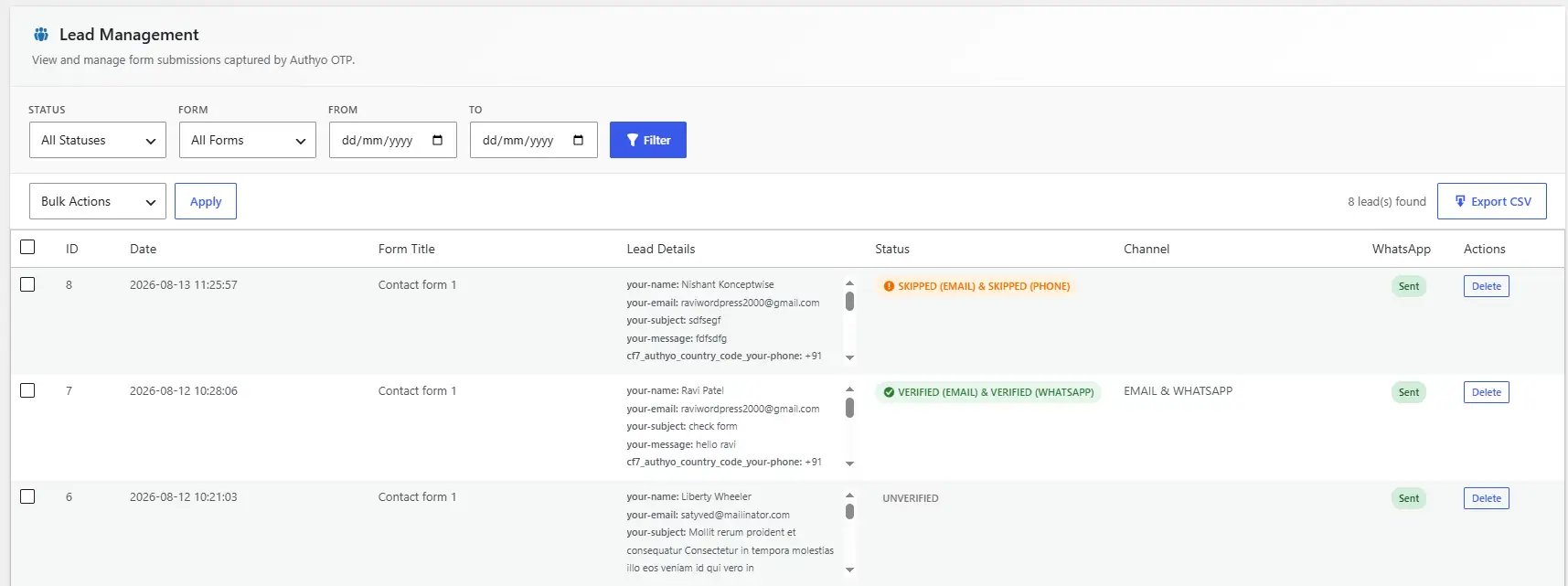
Every successful form submission is automatically saved to a dedicated database table (wp_authyo_leads). The Leads Manager displays:
- Form name and ID, submitted data, and verification status (Verified / Skipped / Unverified).
- Verification channel and WhatsApp notification status.
- Date and time of submission.
- Filter by status, form, or date range.
- Export to CSV for use in Excel, Google Sheets, or any CRM.
- Bulk delete selected leads.
8. Google Sheets Integration
Connect a Google Apps Script web app URL and map CF7 form fields to columns in your Google Sheet. Every verified submission automatically pushes data to your specified sheet — in real time. Per-form mappings mean you can send different forms to different sheets with customized column layouts.
9. WhatsApp Admin Notifications
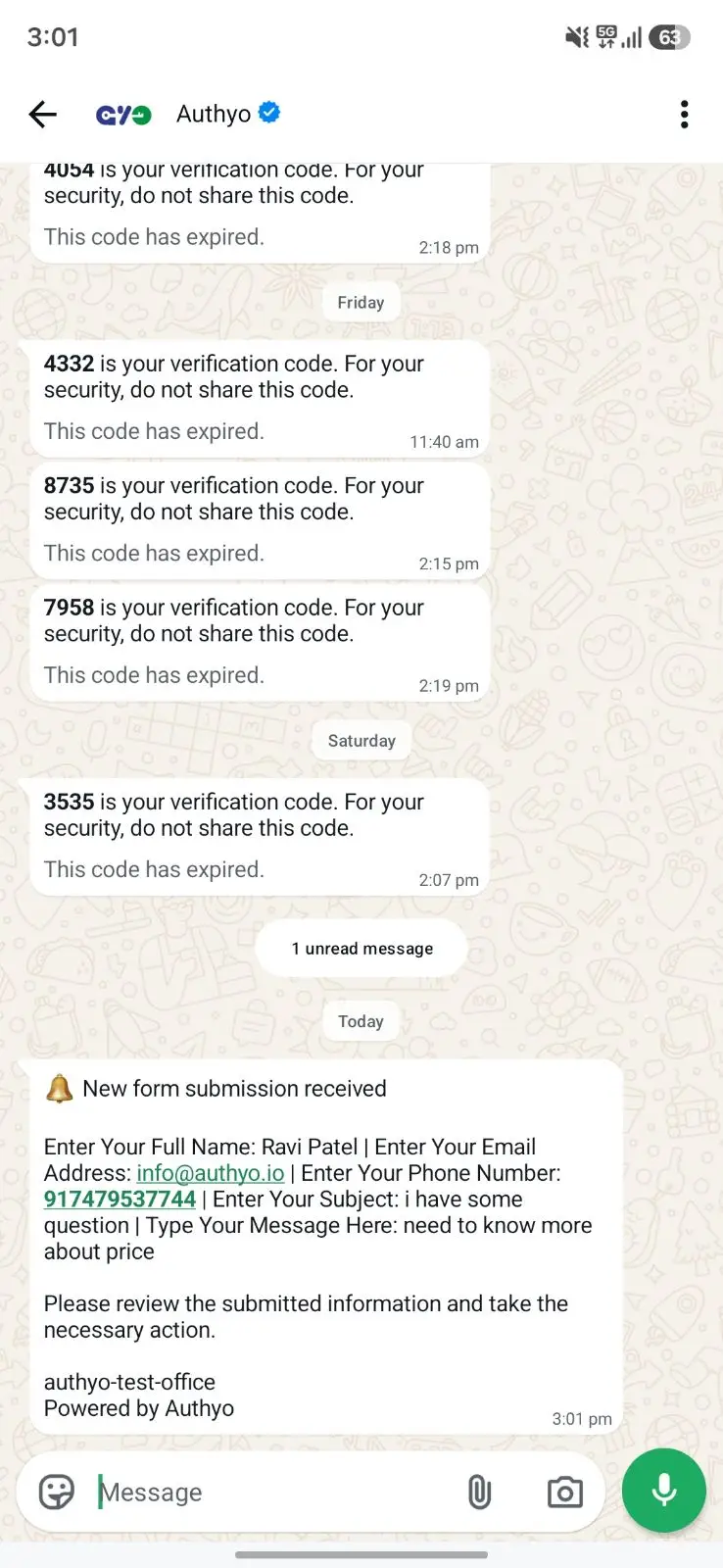
Beyond sending OTPs to users, the plugin can send a WhatsApp notification to the admin every time a form is verified and submitted. The notification uses a pre-approved Authyo template and automatically includes a human-readable summary of all form fields:
The plugin intelligently skips internal plugin fields, file upload fields, and handles checkbox groups as comma-separated lists. Textarea values are trimmed at 500 characters; the total message is capped at 1,000 characters.
10. Rate Limiting and Anti-Abuse Protection
Server-side rate limiting prevents abuse of the OTP send and verify endpoints:
- Send OTP: Maximum 5 sends per 10-minute window, scoped to IP, form ID, and target.
- Verify OTP: Maximum 8 verification attempts per 10-minute window.
- Resend cooldown: Configurable timer (default 30 seconds) prevents hammering the Resend button.
11. GDPR and Privacy Compliance
The plugin automatically adds a privacy policy section to the WordPress Privacy Policy editor and registers a personal data eraser with WordPress's built-in Tools → Erase Personal Data tool — so GDPR erasure requests are handled automatically. Only real user-submitted data is stored; all internal plugin tokens and hidden fields are stripped.
12. Encrypted Credential Storage
Your Authyo API credentials are encrypted using AES-256-CBC encryption with keys derived from your WordPress site's unique secret salts before being stored in the database. They are decrypted only when needed for API calls and are never exposed in plaintext once saved.
13. Caching Plugin Compatibility
The plugin automatically sets the DONOTCACHEPAGE constant whenever it renders an OTP widget, ensuring pages with OTP forms are excluded from caching by WP Super Cache, W3 Total Cache, WP Rocket, LiteSpeed Cache, and more — no manual configuration required.
How to Install Authyo OTP for Contact Form 7
Prerequisites
- Contact Form 7 installed and activated on your WordPress site.
- An active Authyo account at authyo.io with a configured application.
- WordPress running PHP 7.4 or later.
Via the WordPress Plugin Repository (Recommended)
- Log in to your WordPress admin dashboard.
- Go to Plugins → Add New.
- In the search box, type "Authyo OTP for Contact Form 7".
- Find the plugin in the results and click Install Now.
- Once installed, click Activate.
After activation, you'll see a new "Authyo OTP for CF7" menu item in your WordPress admin sidebar. A guided tour will also launch to walk you through initial setup.
Step-by-Step Configuration Guide
Step 1: Create Your Authyo Account and Application
- Visit authyo.io and sign up for a free account.
- Once logged in, create a new Application in your Authyo dashboard.
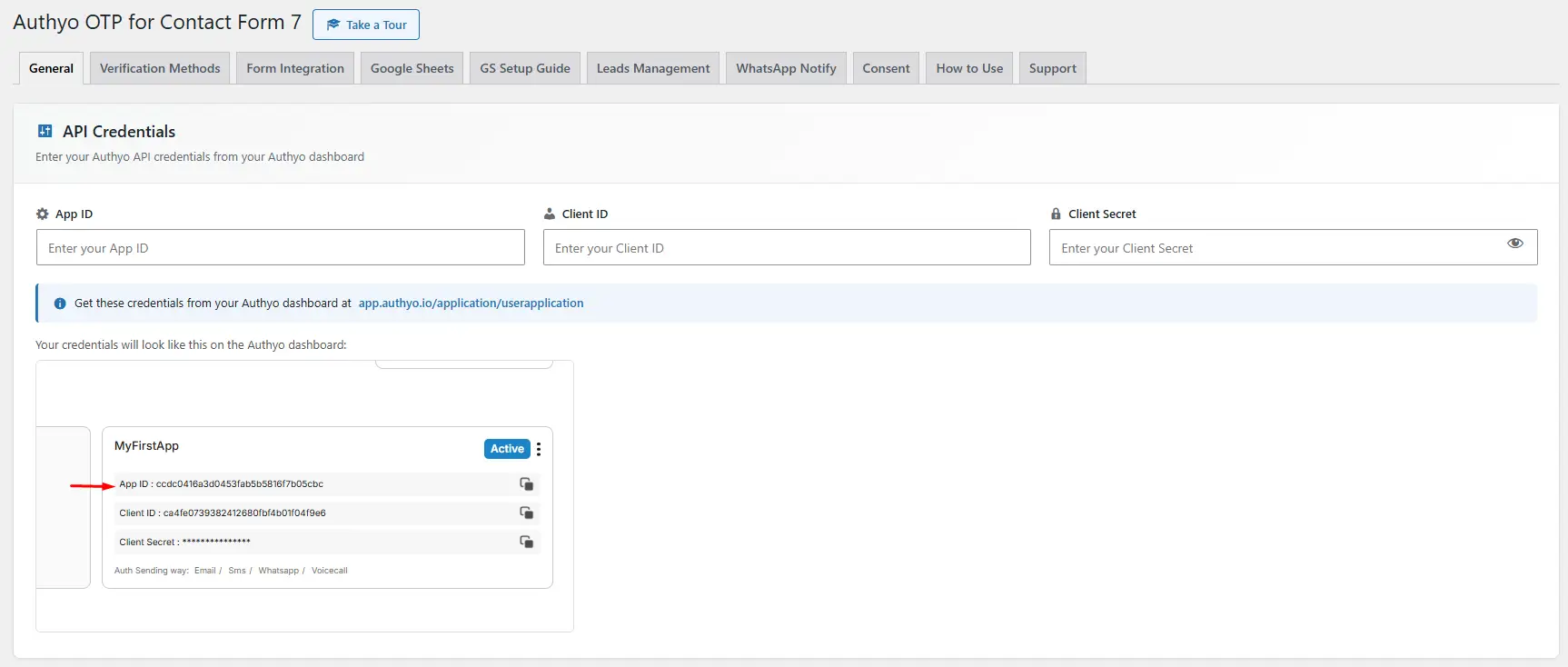
- Note down your App ID, Client ID, and Client Secret.
Step 2: Enter API Credentials in WordPress
- In your WordPress admin, navigate to Authyo OTP for CF7.
- You'll land on the General settings tab.
- Enter your App ID, Client ID, and Client Secret in the respective fields.
- Click Save Settings. Credentials are encrypted immediately.
Step 3: Configure Verification Methods
Click on the Verification Methods tab. Enable/disable channels, set the primary phone method, configure OTP length (4–9 digits), expiry time, resend cooldown, maximum resends, and fallback timer.
Step 4: Configure Country Settings
If you're using phone OTP, configure the country dropdown behavior: All countries (global), Selected countries (regional), or Single country (one market). Enable Advanced Phone Validation for real-time client-side number checking.
Step 5: Enable OTP for Your Forms
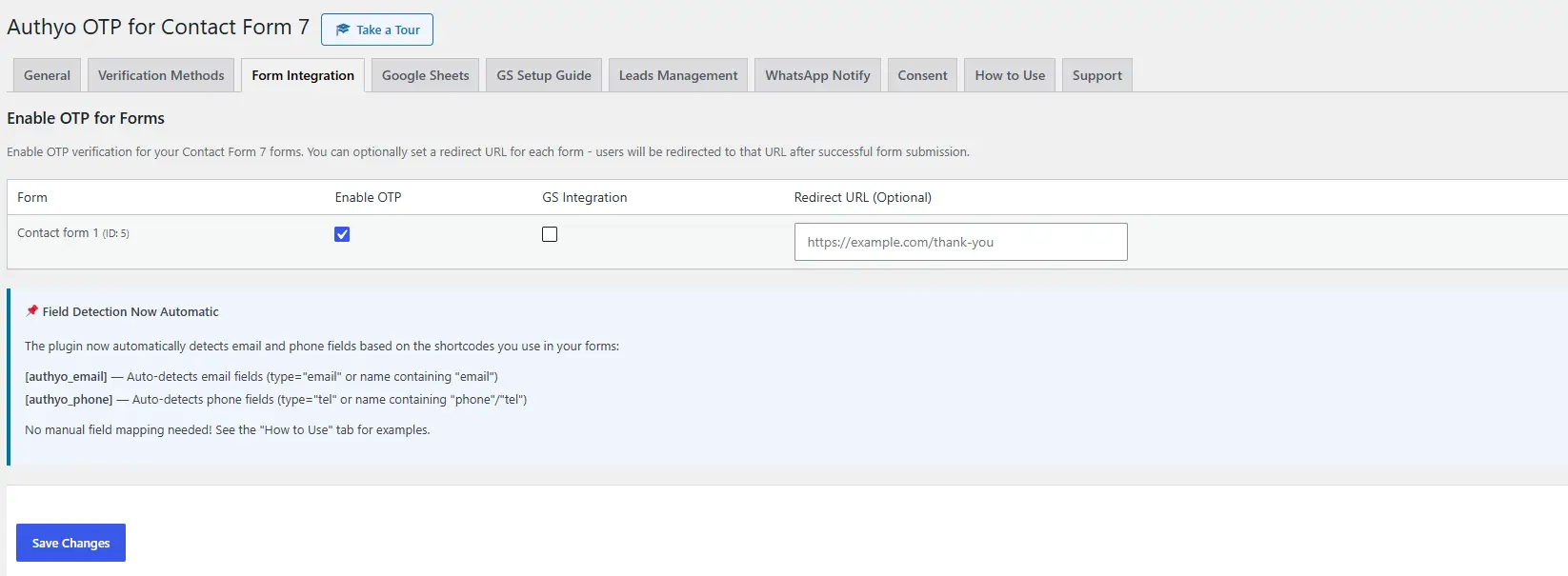
- Click on the Form Integration tab.
- For each form you want to protect, toggle Enable OTP to on.
- Set the Target Field — e.g.,
your-emailoryour-phone. - Optionally set a Redirect URL — the page sent to after successful submission.
- Click Save.
Step 6: Add OTP Shortcodes to Your CF7 Form
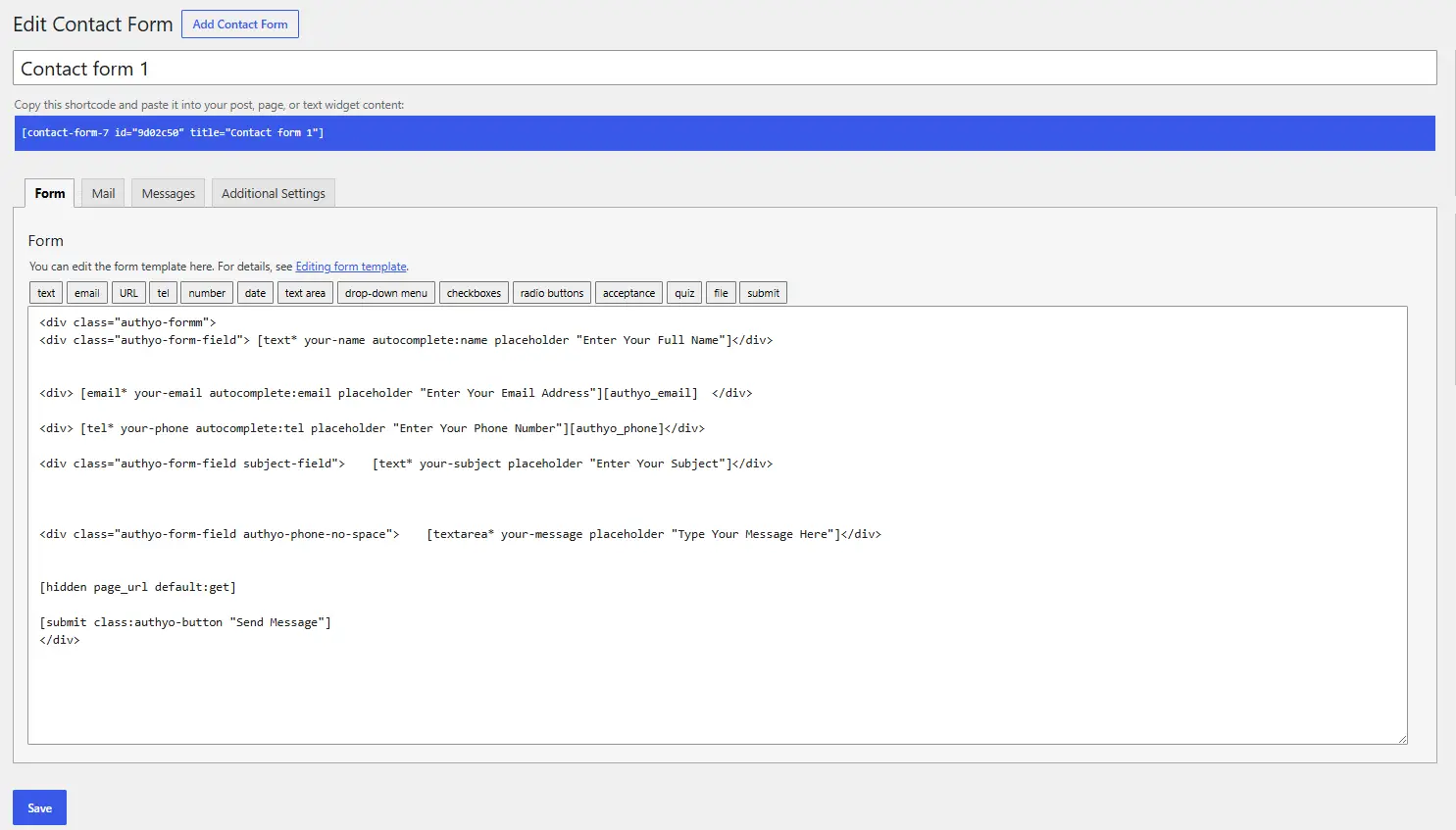
Open your Contact Form 7 form for editing (Contact → Contact Forms → Edit). Add the appropriate Authyo shortcode in the position where you want the OTP widget to appear. See the full shortcode reference below.
Step 7: Configure WhatsApp Admin Notifications (Optional)
- Go to the WhatsApp Notifications tab.
- Enter your admin phone number with country code (e.g., +91XXXXXXXXXX).
- Enable the global toggle and enable per form as needed.
- Save settings.
OTP Shortcodes Reference
The plugin uses WordPress shortcodes to embed OTP widgets inside CF7 forms. Here is the complete reference:
Renders a complete email OTP verification widget — including the "Send OTP to Email" button, the OTP input field, and the resend link. Use when your form collects an email address.
▼
Renders a complete phone OTP verification widget — including the country code dropdown, the "Send OTP" button, the OTP input field, and the fallback method buttons. Use when your form collects a phone number.
▼
▼
Renders only the country code dropdown without any OTP widget. Use this when you want to add a country selector to a phone field without triggering OTP verification.
▼
Example: Dual Verification Form Layout
<label> Your Name [text* your-name] </label>
<label> Your Email [email* your-email] </label>
<label> Your Phone [tel* your-phone] </label>
▼
<label> Your Message [textarea your-message] </label>
[submit "Submit"]In this example, both email and phone must be verified before the form can be submitted.
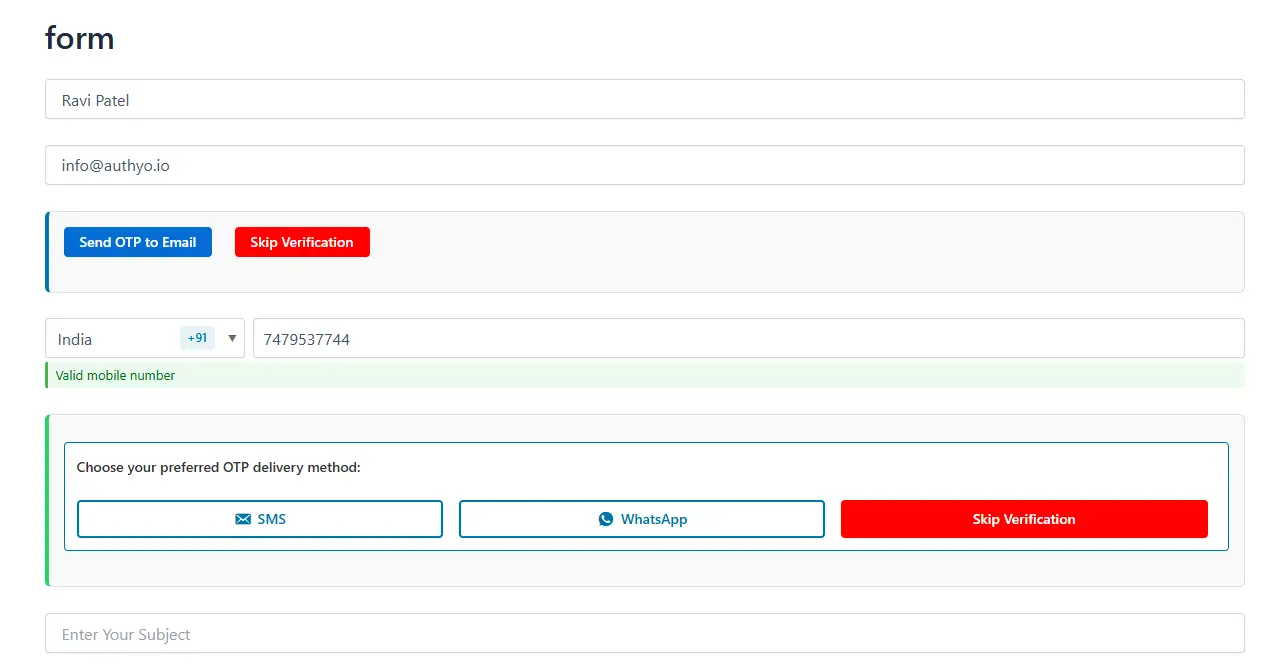
How OTP Verification Works — The User Journey
Email OTP Flow
- The user fills in their email address in the form.
- They click "Send OTP to Email".
- The plugin calls the Authyo API, which sends a one-time code to that email address.
- The user checks their inbox and enters the code in the OTP input field.
- The plugin verifies the code with the Authyo API.
- A green "Email verified ✔" message appears. The user can now submit the form.
Phone OTP Flow
- The user selects their country from the dropdown and enters their phone number.
- They click "Send OTP via SMS/WhatsApp/Voice Call".
- If the code doesn't arrive within the fallback timer, alternative method buttons appear.
- The user enters the OTP code.
- A green "Phone verified ✔" message appears. The form can be submitted.
Server-Side Guard
Even if a malicious user bypasses the JavaScript UI, the plugin runs a server-side verification check using the wpcf7_before_send_mail hook. If valid, server-stored verification tokens are not present, the form is aborted before the email is sent or the lead is saved. The verification is not bypassable from the client side.
Real-World Use Cases
Authyo OTP vs. CAPTCHA vs. Email Confirmation Links
| Feature | Authyo OTP | reCAPTCHA v3 | Email Confirmation Link |
|---|---|---|---|
| Verifies real email ownership | Yes | No | Yes |
| Verifies real phone ownership | Yes | No | No |
| Works without user friction | Moderate | Yes (invisible) | No (inbox action) |
| Blocks bots | Yes | Yes | No |
| Verifies data quality | Yes | No | Partially |
| Works for phone number fields | Yes | No | No |
| GDPR friendly | Yes | Requires consent | Yes |
| Admin notification | No | No | |
| Mobile-first UX | Yes | Variable | No |
CAPTCHA is effective against bots but does nothing to verify that the contact details submitted are real. A bot that fills in a form with fake but plausible-looking data can pass reCAPTCHA. OTP verification catches this entirely different category of problem.
Email confirmation links work but require the user to leave the page, check their inbox, click a link, and potentially return — creating significant drop-off. OTP keeps the entire verification experience within the form in under 30 seconds.
Security Features Deep Dive
Security is at the core of how Authyo OTP for Contact Form 7 is designed:
- Encrypted Credential Storage — API credentials encrypted with AES-256-CBC using keys derived from your WordPress site's unique secret salts. Even database access cannot expose your credentials without the salt configuration.
- Server-Side Verification Authority — Verification state is stored in WordPress transients — not in cookies, local storage, or hidden form fields that can be manipulated. The submission guard queries the server-side transient directly. Client-side JS state is irrelevant to whether the server allows a submission.
- Rate Limiting — Scoped per IP address, form ID, and target — preventing automated abuse of OTP endpoints from a single source.
- REST API Nonce Authentication — Both OTP endpoints (
/sendand/verify) are protected by WordPress REST API nonces. Every request must include a validX-WP-Nonceheader, preventing CSRF attacks. - OTP Expiry — Codes expire after a configurable window (default 5 minutes), limiting the attack surface for OTP interception or reuse.
- Token Cleanup — Verification tokens are cleared from the server immediately after a successful form submission, preventing token replay attacks.
- Input Validation — All inputs are sanitized and validated before processing. OTP codes are validated against a strict numeric pattern on the server side.
GDPR and Privacy Compliance
For website operators serving EU users (or any jurisdiction with strong data protection laws), GDPR compliance is not optional.
What Authyo OTP Does with User Data
During the OTP process, the Authyo cloud service temporarily processes the email address or phone number to deliver the OTP code. Verified form submission data is stored in the wp_authyo_leads table in your own WordPress database — never on Authyo's servers.
Right to Erasure (GDPR Article 17)
The plugin registers a personal data eraser with WordPress's built-in privacy tools. Administrators can go to Tools → Erase Personal Data, enter a user's email address, and WordPress will automatically call the plugin's eraser — which searches the wp_authyo_leads table for all records containing that email and deletes them.
Privacy Policy Content
A pre-written, plugin-provided privacy policy section is automatically suggested in the WordPress Privacy Policy editor — reducing the burden on site administrators to write technical privacy language themselves.
Frequently Asked Questions
No. Authyo OTP for Contact Form 7 requires Contact Form 7 to be installed and activated. It extends CF7's functionality and is not designed to work standalone or with other form plugins.
Yes. The plugin connects to the Authyo API to send and verify OTP codes. You need to create an account at authyo.io, create an application, and obtain your App ID, Client ID, and Client Secret.
Yes. Use and in the same CF7 form. Both must be verified before the form can be submitted.
The user can click Resend after the cooldown period. If a fallback timer is configured, alternative delivery methods (SMS, WhatsApp, Voice Call) automatically appear after the timer expires so the user can try a different channel.
No. The plugin automatically sets the DONOTCACHEPAGE constant on pages containing OTP forms. This instructs all major caching plugins to serve those pages dynamically, ensuring nonces remain fresh. No manual configuration required.
Yes. The Leads Manager includes a CSV export feature. You can export all leads or apply filters (by status, form, or date range) before exporting.
Yes. The Form Integration tab lets you enable or disable OTP independently for each CF7 form on your site.
Yes. Use the shortcode. This adds the searchable country code selector to your phone field without triggering OTP verification.
Yes. The plugin is fully translation-ready and uses the authyo-otp-for-contact-form-7 text domain. All frontend-facing strings are wrapped in WordPress internationalization functions.
The plugin includes built-in GDPR tools: a privacy policy content suggestion, a personal data eraser integrated with WordPress's Tools → Erase Personal Data, and consent management features. Overall GDPR compliance also depends on your specific site setup and data retention policies — consult a legal professional if in doubt.
Conclusion: Secure, Verify, and Trust Every Form Submission
If your business depends on Contact Form 7 to generate leads, bookings, inquiries, or registrations — and if the quality of those contacts matters — then Authyo OTP for Contact Form 7 is one of the most valuable plugins you can add to your WordPress site.
It solves the spam and fake data problem at the source, before submissions enter your system. It gives your sales and marketing teams a clean, verified, trustworthy lead list to work from. And it does all of this without replacing Contact Form 7, forcing you to rebuild your forms, or creating a disruptive experience for genuine users.
With four OTP channels, dual verification, smart fallbacks, a built-in leads database, Google Sheets integration, WhatsApp notifications, GDPR tools, and advanced phone validation — all in one plugin — it's a genuinely complete solution.
Ready to Verify Every Lead?
Install Authyo OTP for Contact Form 7 today and start collecting only real, verified, reachable contacts — every time.